ShootAssist just got employee scheduling superpowers!
One of the first things most new users ask about is how to schedule employees on the jobs they're handling in ShootAssist. And, it makes sense! ShootAssist stores your job, workflow and client information so it would be the ideal place to also handle employee scheduling.
Long story short, I've integrated with Crew to bring Employee scheduling to ShootAssist and the integration went live today!
So, why Crew? I'm a nerd for software that does it's job really well, is simple, and fits volume photography in particular. In testing a whole bunch of solutions, Crew was the best solution we found at Vernon Photo. They offer iPhone, Android, Mac and web apps so it's super accessible for your employees and they offer Event based scheduling instead of shift based. For volume photography, this is the deal breaker for most tools on the market. It's a pain to create 4 shifts for the same job just to assign 4 people. With Crew, you create one event for a job, and then assign however many employees you need. They get access to the job details, can chat with other employees assigned to the job and can even find replacements for themselves if they're not able to cover the shift. And, that's just the start! You can host files there like lighting diagrams or SOPs for your employees to access on the go, you can track time, give feedback, send team-wide updates, request shift covers, share surveys and more.
Where does ShootAssist fit in? Once you integrate ShootAssist with Crew, any jobs you create in ShootAssist will be pushed to Crew with all pertinent into: Job type, Client, Start time, Address, Notes, What room / location at the Client's address etc. And, if you reschedule or delete a job, ShootAssist will make those changes for you as well.
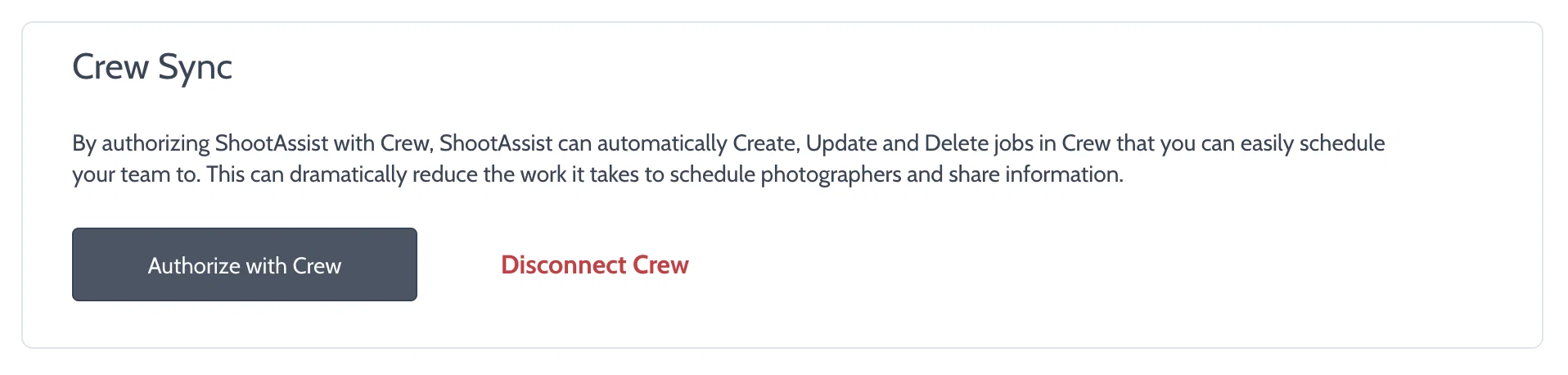
Create and manage job in ShootAssist, simply assign employees to the job in Crew and you're good to go! To get started, make sure to set up an account in Crew. Then head over to Settings / API and click Authorize with Crew.